← Features Feature

Scheduling & organisation

Annual class timetable, guided creation wizard, assignment of trainers and subjects, tasks outside the classroom: set up a whole year of training in a few minutes, with no spreadsheet and no re-keying.

Class creation wizard

A complete class in seven guided steps

The wizard guides you from the first field to the annual timetable. You never start from a blank page and nothing is final: everything can be edited later.

1Frame

Details, hours & subjects

Name, level, site, colour, then the course's teaching hours and their breakdown by subject, with an automatic check of the planned total.

2Build

Trainers & learners

Assign trainers, create one on the fly if needed, then enter learners one by one or paste a complete list in one go.

3Schedule

Annual timetable & summary

Place the training days on the grid of weeks in the year, check the summary, and the class is ready to run.

Training timetable

The annual timetable,
set in a few clicks

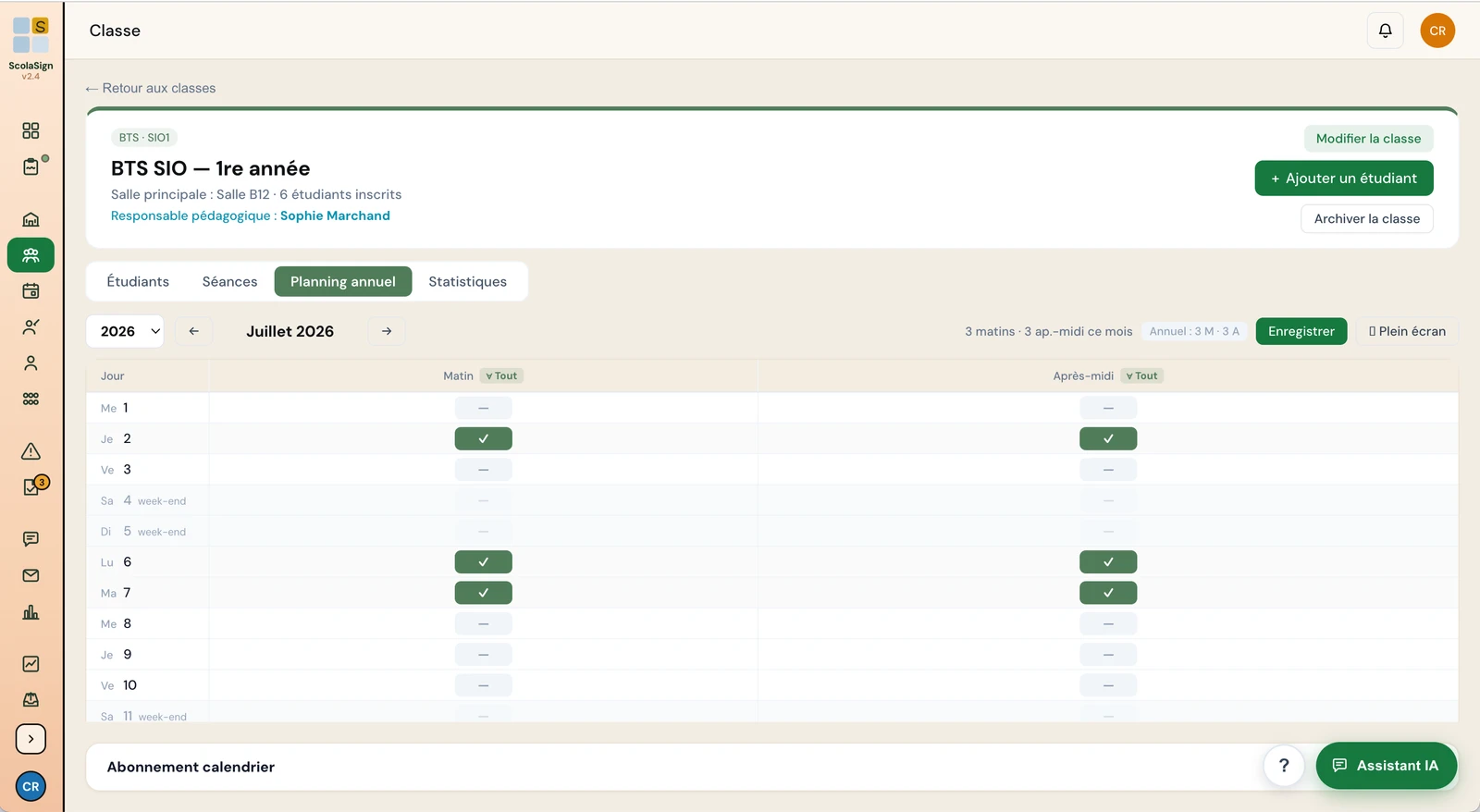
A grid of the weeks in the year to place training days in bulk, with frozen headers and a full-screen mode. Ideal for work-based learning, where weeks in training alternate with weeks at the employer.

  • Annual timetable by class, for the whole year
  • Time slots specific to the class or the site
  • Sessions opened and closed automatically on time
  • One-off sessions with Morning / Afternoon shortcuts
Start the free trial →
ScolaSign console (French interface): a class's annual timetable, grid of working mornings and afternoons, month by month
Assignments & subjects

Every trainer,
every subject in its place

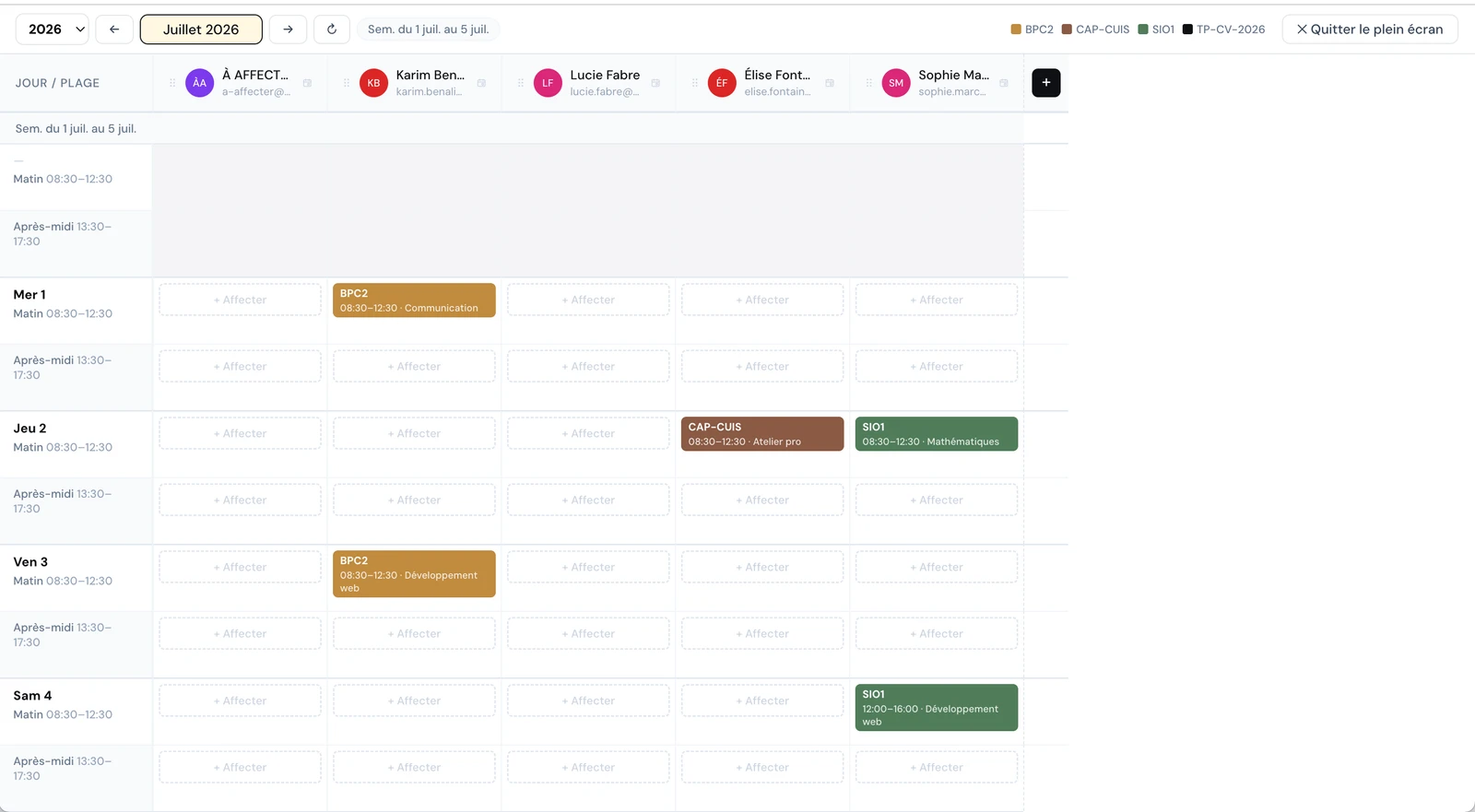
The assignment matrix crosses your classes with the days of the week to set who teaches what, where and when. Subjects are managed by class and by trainer.

  • Trainers assigned to Morning / Afternoon slots
  • Choice of subject and room for each slot
  • Custom columns for tasks outside the classroom
  • View by trainer or by course, filter by site
See all features →
ScolaSign console (French interface): trainer assignment matrix, classes assigned by day and half-day, in full screen
No session forgotten

The timetable keeps watch for you

Beyond lessons, schedule exam supervision, marking and meetings. And if attendance for a finished session was never opened, an alert tells admin staff so it can be put right without delay.

Tasks outside the classroom

Exam supervision, marking, staff meetings: these slots appear in the timetable and are counted separately from teaching hours.

Forgotten sign-in alert

A finished session with no attendance opened is flagged to admin staff, with a recorded request for a retrospective signature.

Each role, its own view

Trainers see only their column, coordinators their sites, admins the whole organisation.

Frequently asked questions

ScolaSign scheduling in brief

How long does it take to set up a class and its timetable?

The class creation wizard runs through seven steps (details, teaching hours, subjects, trainers, learners, annual timetable, summary). Once the trainers and teaching hours are known, a complete class with its timetable can be set up in a few minutes. You can create a trainer on the fly without leaving the wizard, paste a list of learners in bulk and place the training days on the annual grid. Nothing is fixed: everything can be edited later from the class record.

Can you schedule things other than lessons, such as exam supervision?

Yes. The assignment matrix accepts custom columns for tasks outside the classroom: exam supervision, marking, staff meetings, preparation. These slots appear in the timetable of the trainer concerned and are counted separately from teaching hours, giving a complete view of each trainer's workload without mixing time in front of learners with other work.

Can a trainer see the whole organisation's timetable?

No. Each role has a view suited to its scope. Trainers see only their own column in the planning: their slots, classes and subjects, without colleagues' assignments or the indicators reserved for admin staff. Academic coordinators are limited to the sites they are attached to. Admins keep an overview of the whole organisation.

What happens if attendance was forgotten for a session?

If a trainer did not open attendance for a session that has already ended, a "forgotten sign-ins" alert appears for admin staff. From this alert, a retrospective signature can be requested, recorded as such with the person who actually signed. No scheduled session slips through the net, which keeps your attendance evidence complete ahead of an audit.

Video

A class's annual timetable

Teaching weeks, periods at the employer and holidays: this is where the sessions are derived from. Narrated in English; the interface shown is the French one.

See all the video tutorials →

Set up your training year
before the next intake

Test the class creation wizard and the annual timetable on your own courses. 14-day free trial, no credit card required.